 Application and recording
Hub Data App: Complete Guide
How to access the platform on your cell phone, configure the recording setup, send tasks and resolve the most common problems.
Access
Mobile platform
Recording
Camera + head strap
Shipping
Recommended stable Wi-Fi
Official app
Minute Data (App Store and Google Play)
Transparency
What is the official Hub Data app?
Minute Data for iPhone and Android Compatible
The Hub Data directs recordings to Minute, available through the official links for iPhone and Android. Use the same email as your Hub account and confirm your organization code before getting started.
Hub Data provides an official link of Minute on Google Play. Check the app to see if your Android is compatible before purchasing accessories.
This article may contain affiliate links. When you register through our link, we may receive a commission at no additional cost to you.
Setup
How to configure before recording
1. head strap
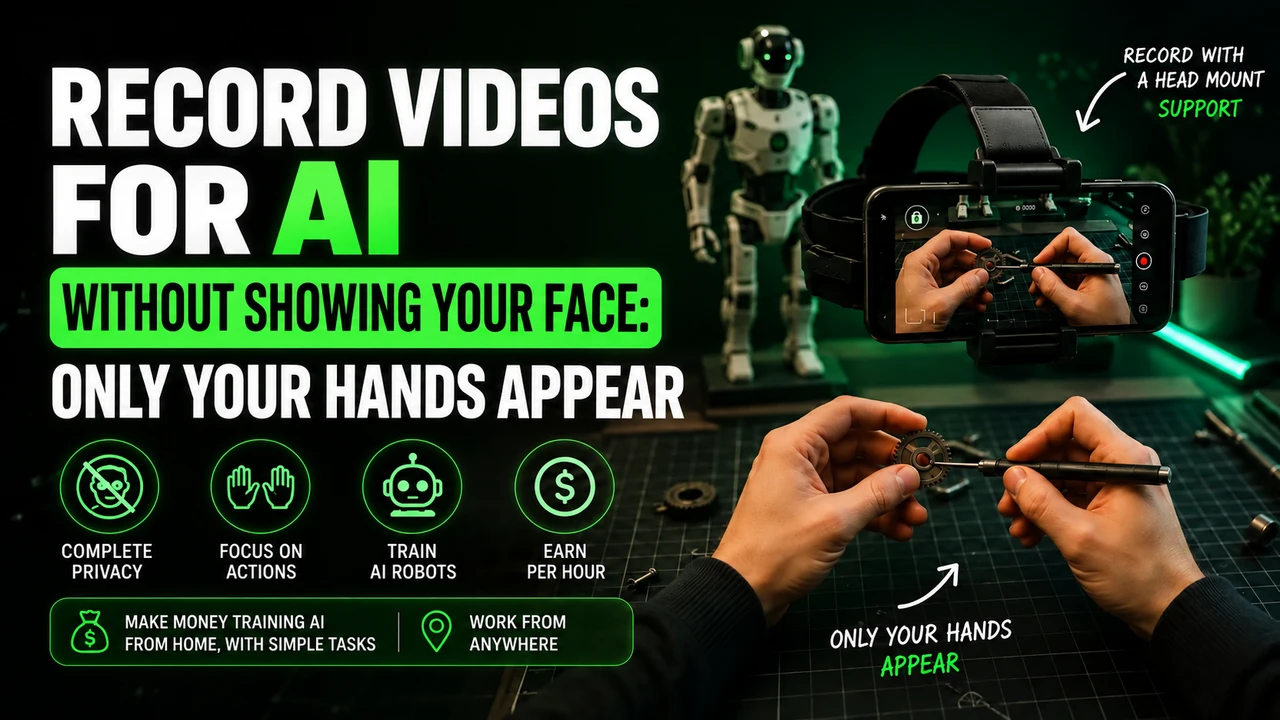
Hold the cell phone firmly, with the camera pointed slightly downwards, towards your hands.
2. Space and battery
Free up storage and start with a high battery or portable charger nearby.
3. Do not disturb
Activate focus mode: a call in the middle of recording can invalidate the session.
4. Light
Natural light or a well-positioned lamp. Shadow of the body on the task fails the video.
5. Privacy
Remove documents, password screens and family photos from the scene; ask third parties to leave.
6. 1 minute test
Record a short test and watch it before doing the full session.
Permissions
Permissions required on mobile
- Camera
- Microphone (when the campaign requests audio)
- Storage to save videos
App size, minimum iOS/Android version and update history: Information not publicly available. We recommend checking directly after registering.
Usage
How to save and submit tasks
- 01
Choose the campaign
Read the full script and approval criteria.
- 02
Start recording
Start before picking up the assignment materials.
- 03
Run entire
Without cuts, in a natural rhythm, hands always on the frame.
- 04
Submit and check
Upload over Wi-Fi and track the status on the dashboard.
Support
Common problems and solutions
Upload failing or freezing
Use stable Wi-Fi, keep the screen active while sending and free up space on your device.
Video rejected due to framing
Hands need to stay in the center of the board from the beginning to the end of the task.
Cell phone getting hot during long recordings
Reduce the duration of sessions and remove the device cover.
Device not accepted
Check the compatibility list on the platform before purchasing accessories.
Tips
Usage tips that increase approval
Read the entire campaign script before starting
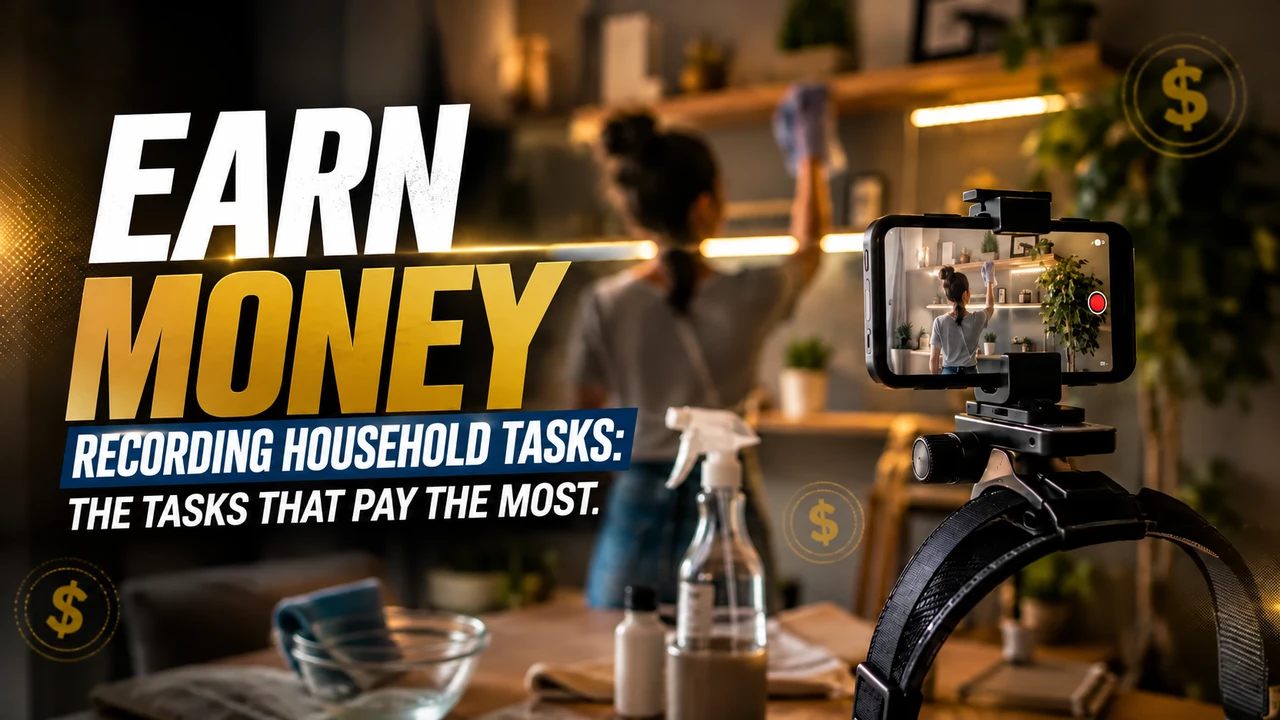
Record the complete task: pick up the material, execute and store
Move your head slowly; the robot learns with stable image
Prefer natural light or a well-positioned lamp
Make natural movements, in the normal rhythm of everyday life
Clean the lens before each session
Check the video before submitting: you are the first reviewer
FAQ
Questions about the application
What is the name of Hub Data app and where to download it?
Hub Data recommends Minute for recording and offers links to the App Store and Google Play. Check in-app compatibility and link the organization indicated in your Hub account.
Which cell phone works on Hub Data?
The platform itself keeps checking the device’s compatibility. The rule of thumb is a cell phone capable of recording stable video in good resolution, with sufficient free space. Please confirm before purchasing accessories.
What permissions does the cell phone need to allow?
Camera to record, microphone when the campaign requests audio and storage to save the files before sending.
Do I need fast internet?
Not for recording. To send, yes: long videos in good resolution generate large files, so stable Wi-Fi avoids interrupted uploads.
Can I use an action camera instead of my cell phone?
The official proposal is recording using a cell phone attached to the head. Any different equipment should only be used if the campaign expressly allows it.
Access Hub Data platform
Free registration, recording via cell phone and direct sending for quality checks.
This article may contain affiliate links. When you register through our link, we may receive a commission at no additional cost to you.
Prepare recording for Hub Data
For head-mounted first-person tasks, free your hands, adjust the headstrap, and film the actual activity until completion. Avoid faces, children, unnecessary body exposure, long pauses and artificial repetition.
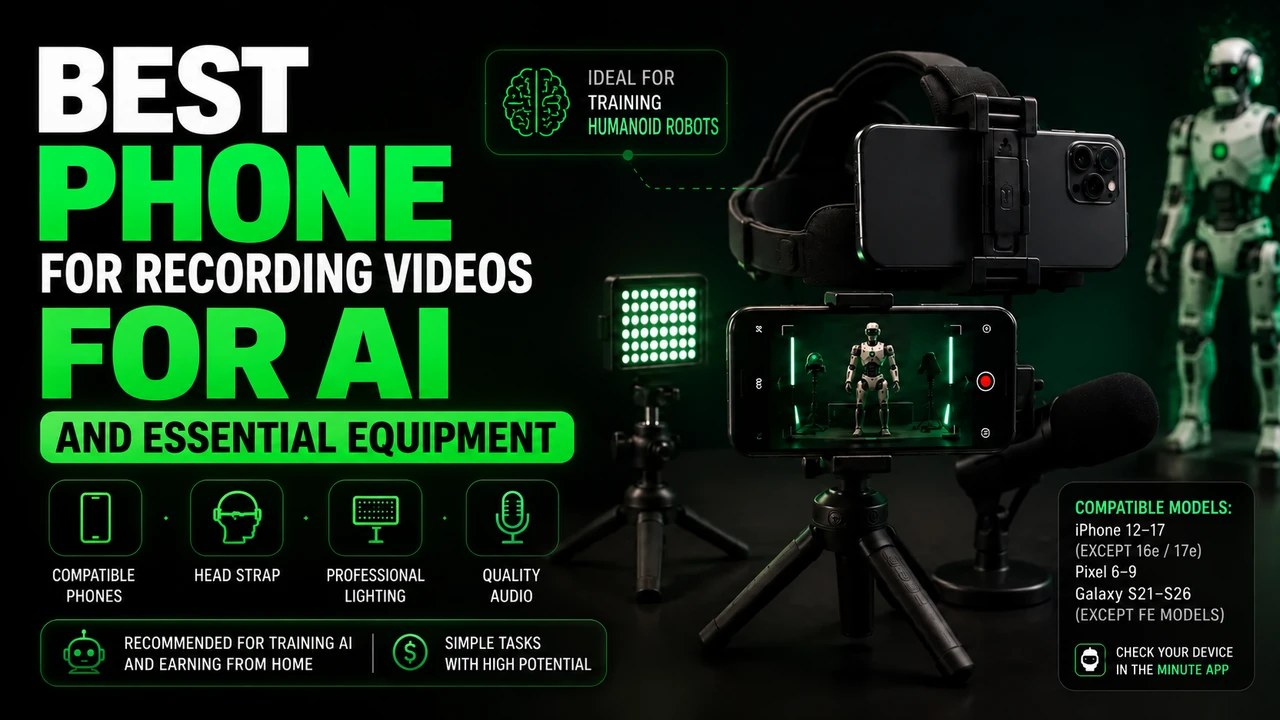
If the stream uses Minute, check in the app: iPhone 12 to 17 (except 16e and 17e), Google Pixel 6 to 9, and Samsung Galaxy S21 to S26 (except FE models). Reserve the email intended for this link and obtain the synchronization code in the instructions for your own Hub Data account.
You can buy the cell phone head mount at Shopee e consult the option of renting a compatible cell phone. Before recording, read the Hub Data recording step by step, with account, framing and warning about blocks.